menu_book
Setup Guide
Everything you need to go from purchase
to tracking on your home screen.
schedule Under 10 minutes total
lock_open Step 1 Unlock the app
table_chart Step 2 Connect your sheet
add_to_home_screen Step 3 Add to home screen
lock_open
Step 1
Unlock the app
~1 min
1
Find your licence key

Check the email you used to purchase on Gumroad. Your unique key is in the receipt — it looks like XXXX-XXXX-XXXX-XXXX. You can also find it at gumroad.com/library.

2
Open the app

Go to the Cycle Tracker URL on your phone or browser. You'll see a welcome screen asking for your licence key.

3
Paste your key and tap Unlock

Paste your key into the field and tap Unlock AppThe app verifies it instantly and lets you in. Your key is saved — you'll never need to enter it again on this device.

check_circle Your key works on any number of your own devices. Lost it? Find it again in your Gumroad library anytime.

table_chart
Step 2
Connect your Google Sheet
~5 min
info This is the only technical step. The app walks you through it automatically when you first unlock — but this guide has the full details if you need them.
auto_awesome
Shortcut — Use our ready-made template

Skip steps 1–3 below. Click the link to copy a pre-formatted sheet with the script already inside — then just run setup and deploy.

content_copy Copy the template sheet Google will make a private copy in your own Drive — we can't see it.
1
Copy the template or create a blank sheet

Use the template link above (recommended) — it already has the script inside. Or go to sheets.google.com, create a blank sheet, then open Extensions → Apps Script delete the default code, paste google-apps-script.gs from your download, and save.

2
Grant permissions first (one time only)

Before the menu works, you need to authorize the script. In Apps Script, click the function dropdown next to the ▶ Run button, select setupCycleTracker and click Run

1. Click Review permissions
2. Choose your Google account
3. Click Advanced (small text at bottom)
4. Click Go to Cycle Tracker (unsafe)
5. Click Allow
info After allowing, go back to your Google Sheet, refresh the page, and click Cycle Tracker → Setup & Format Sheet from the top menu. This time it will work.

arrow_downward Here's where to find setupCycleTracker in the function dropdown:
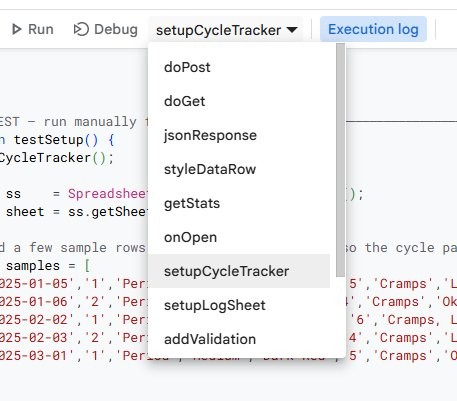
Apps Script dropdown showing setupCycleTracker

✓ Your sheet will now have a Cycle Log tab and a Summary tab — all formatted and ready.

3
Deploy as a Web App

Click Deploy → New deployment in the top right. Click the gear icon and choose Web app.

Set these exactly:

Execute as: Me
Who has access: Anyone

Click Deploy. Approve permissions if asked again.

4
Copy your Web App URL

After deploying you'll see a URL ending in /exec. Copy it — you'll paste it into the app next.

5
Connect it in the app

Back in Cycle Tracker, tap the settings Settings button in the top right. Paste your URL into the field and tap Save & Connect. A green dot confirms you're connected.

check_circle Your Google Sheet will appear in your Google Drive at drive.google.com. Every entry you log will appear as a new row automatically.
update Updated the script in future? Go to Deploy → Manage deployments → click the pencil icon → select New version → Deploy. Your URL stays the same.

add_to_home_screen
Step 3
Add to your home screen
~1 min
phone_iphone
iPhone / iPad

Open the app in Safari — must be Safari, not Chrome.

1. Tap the ios_share Share button at the bottom of Safari
2. Scroll down and tap "Add to Home Screen"
3. Tap Add in the top right
android
Android

Open the app in Chrome.

1. A banner may appear — tap Install
2. If not, tap the ⋮ menu top right
3. Select "Add to Home Screen" or "Install app"
check_circle Once installed, the app opens full-screen with no browser bar — just like a native app. It also works offline after the first load.
local_florist

You're all set!

Cycle Tracker is on your home screen and connected to your Google Sheet. Your data is private, your entries are yours. Happy tracking 🌸